Environment
- Hardware: Raspberry Pi
- Operating System: Debian GNU/Linux 13 (Trixie)
- Access Method: SSH (headless setup)
- Container Runtime: Docker Engine
- Container Management: Portainer
Note: This lab avoids convenience installers (curl | sh) in favor of signed repositories for better security and reproducibility.
Step 1 — Updates & Cockpit Install
Step 1.1 — Update Package Lists
Purpose: Refresh the system’s package index (similar to refreshing an App Store catalog) so it knows which software updates and new packages are available.
sudo apt updateStep 1.2 — Apply System Upgrades
Purpose: Install available updates (similar to clicking “Update All” in an App Store) to bring the operating system and installed packages up to date with current security and stability fixes.
sudo apt upgradeStep 1.3 — Install Cockpit
Purpose: Install Cockpit for web-based system management interface.
sudo apt install cockpitStep 1.4 — Verify Cockpit Access
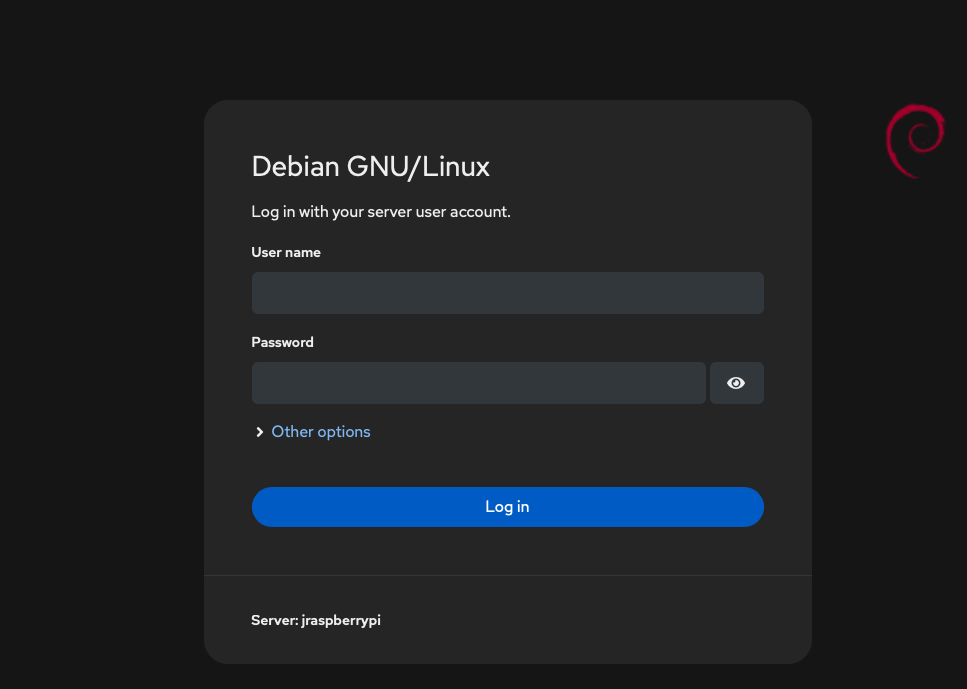
Purpose: Confirm Cockpit is accessible and functioning properly - log in with your Pi credentials.
In your browser, go to https://YOUR-PI-IP-ADDRESS:9090 Log in using the username and password for your Pi.
Step 2: Install Docker & Portainer
Step 2.1 — Remove Conflicting Packages
Purpose: Ensure no legacy container runtimes or conflicting packages are present.
sudo apt-get remove -y docker.io docker-doc docker-compose podman-docker containerd runcStep 2.2 — Install Prerequisites
Purpose: Enable secure package downloads and cryptographic verification.
sudo apt-get update
sudo apt-get install -y ca-certificates curl gnupg
Step 2.3 — Add Docker GPG Key
Purpose: Ensure Docker packages are cryptographically signed and trusted.
sudo install -m 0755 -d /etc/apt/keyrings
curl -fsSL https://download.docker.com/linux/debian/gpg | sudo gpg --dearmor -o /etc/apt/keyrings/docker.gpg
sudo chmod a+r /etc/apt/keyrings/docker.gpg
Step 2.4 — Add Docker Repository
Purpose: Install Docker from Docker's official repository rather than Debian defaults.
echo \
"deb [arch=$(dpkg --print-architecture) signed-by=/etc/apt/keyrings/docker.gpg] \
https://download.docker.com/linux/debian trixie stable" | \
sudo tee /etc/apt/sources.list.d/docker.list > /dev/null
Step 2.5 — Install Docker Engine and Plugins
sudo apt-get update
sudo apt-get install -y docker-ce docker-ce-cli containerd.io docker-buildx-plugin docker-compose-plugin
Step 2.6 — Enable and Verify Docker
Purpose
Ensure the Docker service automatically starts on boot and confirm that the Docker engine can successfully download, run, and clean up containers. This validates that Docker is fully operational before deploying any services.
Commands
sudo systemctl enable --now docker
docker run --rm hello-world
docker compose version
Expected Outcome
Docker starts immediately and is configured to persist after system reboots.
The hello-world container is successfully downloaded, executed, and removed, confirming that the Docker daemon is running, image pulls from Docker Hub are functioning correctly, and container lifecycle operations (pull → run → stop → remove) work as expected.
Docker Compose reports a valid installed version, indicating the system is ready to support multi-container applications.Step 2.7 — Deploy Portainer (Container Management UI)
Purpose
Deploy Portainer to provide a web-based management interface for Docker, making it easier to monitor containers, images, volumes, and networks without relying solely on the command line.
Commands
docker volume create portainer_data

docker run -d \
  -p 9000:9000 \
  -p 9443:9443 \
  --name portainer \
  --restart=always \
  -v /var/run/docker.sock:/var/run/docker.sock \
  -v portainer_data:/data \
  portainer/portainer-ce:latest
Expected Outcome
A persistent Docker volume is created to store Portainer configuration data, and the Portainer container starts in detached mode with automatic restart enabled.
The service listens on ports 9000 (HTTP) and 9443 (HTTPS) and is accessible from the local network.
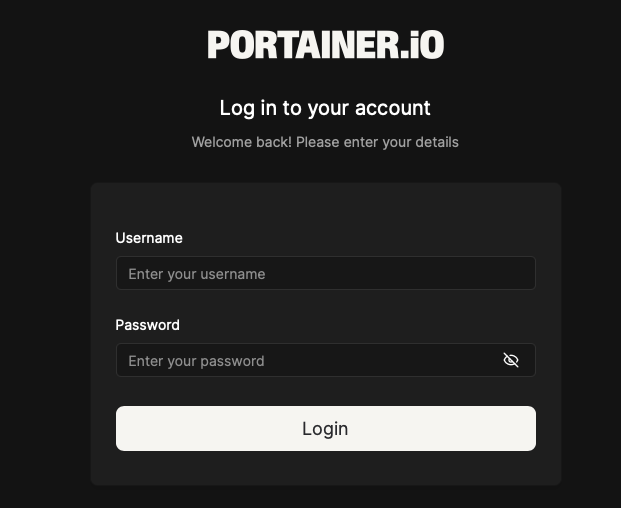
Step 2.8 — Create Portainer Account
Purpose: On first login to Portainer, an admin account will be created; be sure to use a strong non-default username and complex password.
Step 2.9 — Network & Exposure Validation
Purpose
Verify the host's network configuration and identify any active listening services to understand the system's local exposure and confirm that no services are unintentionally accessible from the internet.
Commands
ip route
sudo ss -tulpn
Expected Outcome
Confirm the system is operating on a local LAN and is not directly reachable from the public internet.
Only expected services, such as Docker and Portainer are listening, indicating that the system's attack surface is minimal at this stage.
Step 3 — Deploy a Hardened Kali Linux Container (Docker)
Purpose
Deployed a hardened Kali Linux container using Docker and Portainer ensuring the container introduces no additional attack surface to the host or local network. This allows offensive tooling to be available for lab exercises while maintaining a defensive security posture. While the Kali container supports an optional browser-based desktop via internal web services, this functionality was intentionally not exposed. The container is only accessible via docker exec and not browser/KasmVNCto avoid publishing ports or introducing additional web-facing services into the lab environment.
Note:
I was unable to create the container directly in Portainer, it would cause my PI to freeze up. So I pre-pulled the Kali image via the Docker CLI and then created the container in Portainer.
Container configuration settings:
- Image:
lscr.io/linuxserver/kali-linux:latest - Network mode: bridge (default Docker isolation)
- Published ports: None
- Volumes / bind mounts: None
- Privileged mode: Disabled
- Restart policy: No
- Environment variables:
- PUID=1000
- PGID=1000
- TZ=<local timezone>